Add a Violation
Code violations are used to identify conditions that do not meet a set of rules or code requirements. The Violations panel allows you to add code violations to a case. Depending on how the administrator has configured the template, certain violations might already be on the case. They are listed
 NOTE: A fee may be linked to violations by the administrator. If this is set up when a violation is issued, the fee is automatically associated and added to the fee structure for the case. If the violation is deleted, the fee is removed if no payment is made.
- To add a violation to the case,
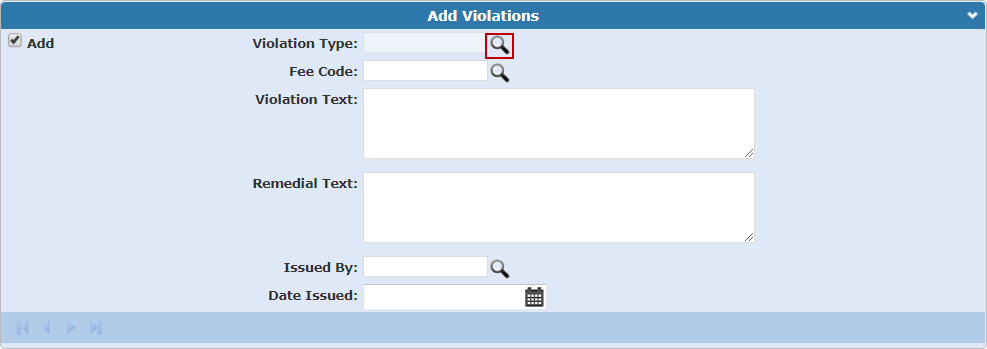
- Select the check box next to the violation(s) you wish to add.
-
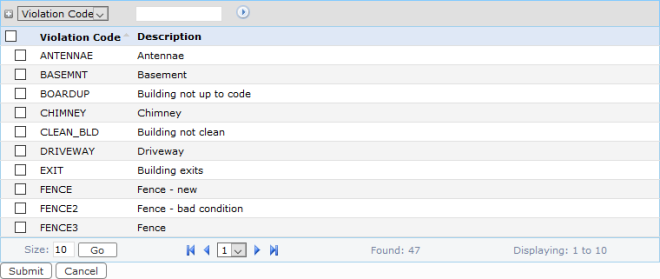
The Violation Text field automatically populates when the Violation Type is selected if it has been configured by the administrator. See Add a Violation Code in the PLL Admin Office Companion 23 Guide for more information.
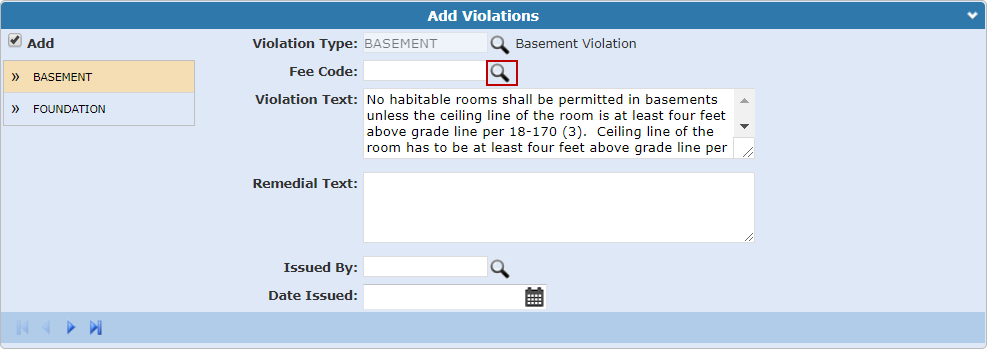
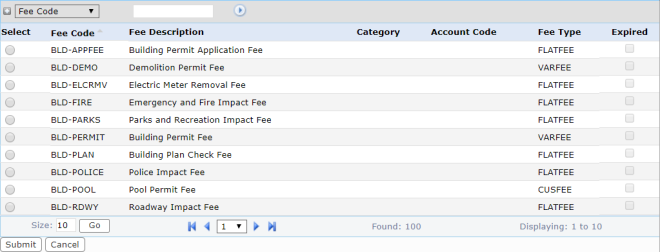
- Select the fee you wish to add.
-
- Enter Remedial Text explaining what needs to be done to remedy the violation.
-
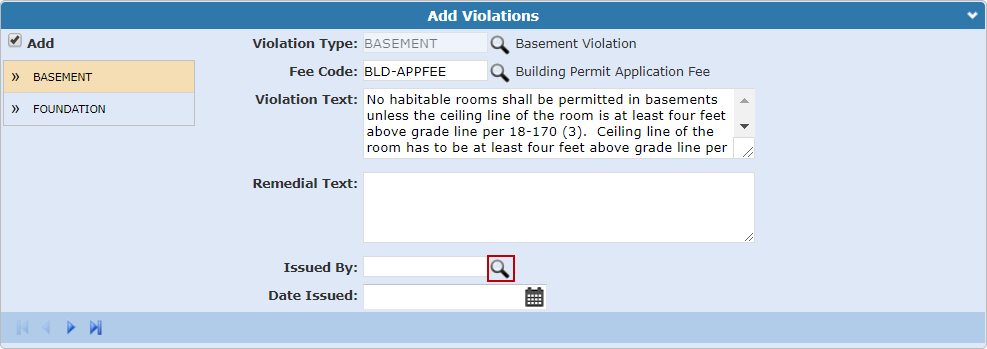
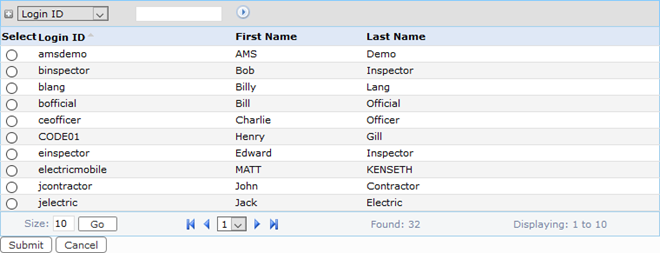
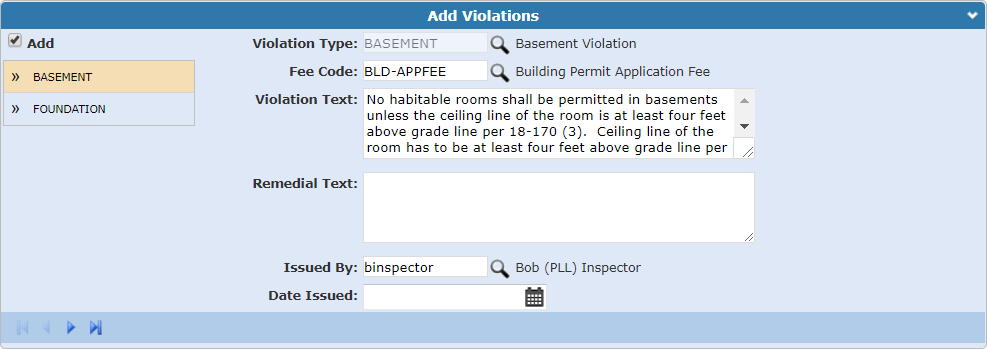
- Select the option next to the person you wish to issue the violation to.
-
- Use the calendar icon
NOTE: If you are adding violations from the summary page, you need to
See Violations Panel Fields for an explanation of the Violation panel fields.