View a Deposit
You can see an overview of the deposit's information
- Select the record(s) and
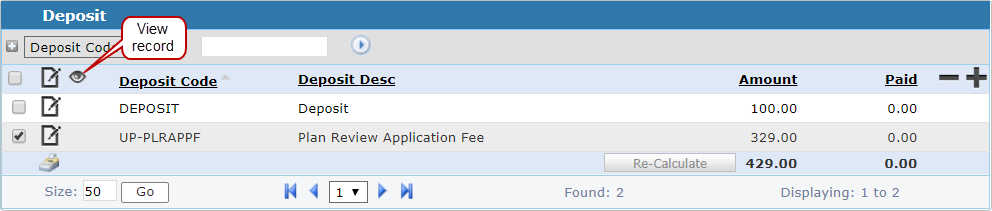
The
 NOTE: If you selected more than one deposit, you can switch between the deposits by selecting the one you want to view on the upper-left side of the panel, or by using the arrows at the bottom of the panel.
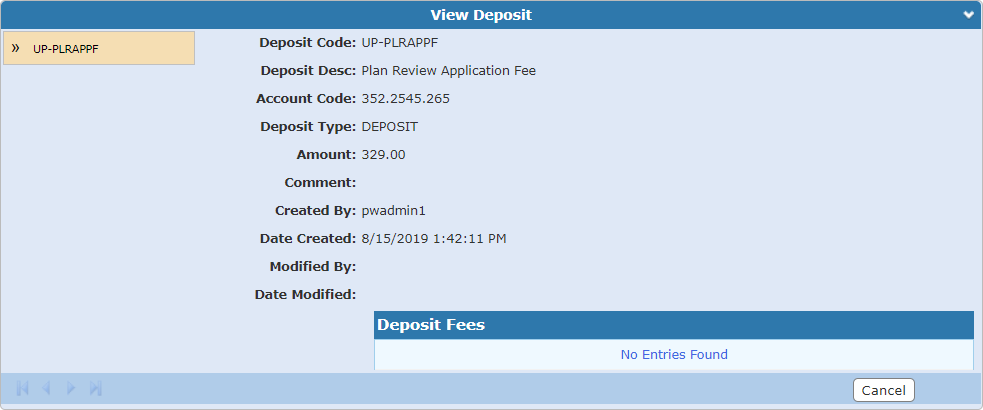
This shows all information pertaining to the selected deposit
NOTE: See Add a Deposit, Edit a Deposit, or Remove a Deposit for more information on adding, editing, or removing a deposit.